 January 12 - 14, 2026 | Hyatt Regency New Orleans | New Orleans, LA
)
)
)
January 12 - 14, 2026 | Hyatt Regency New Orleans | New Orleans, LA
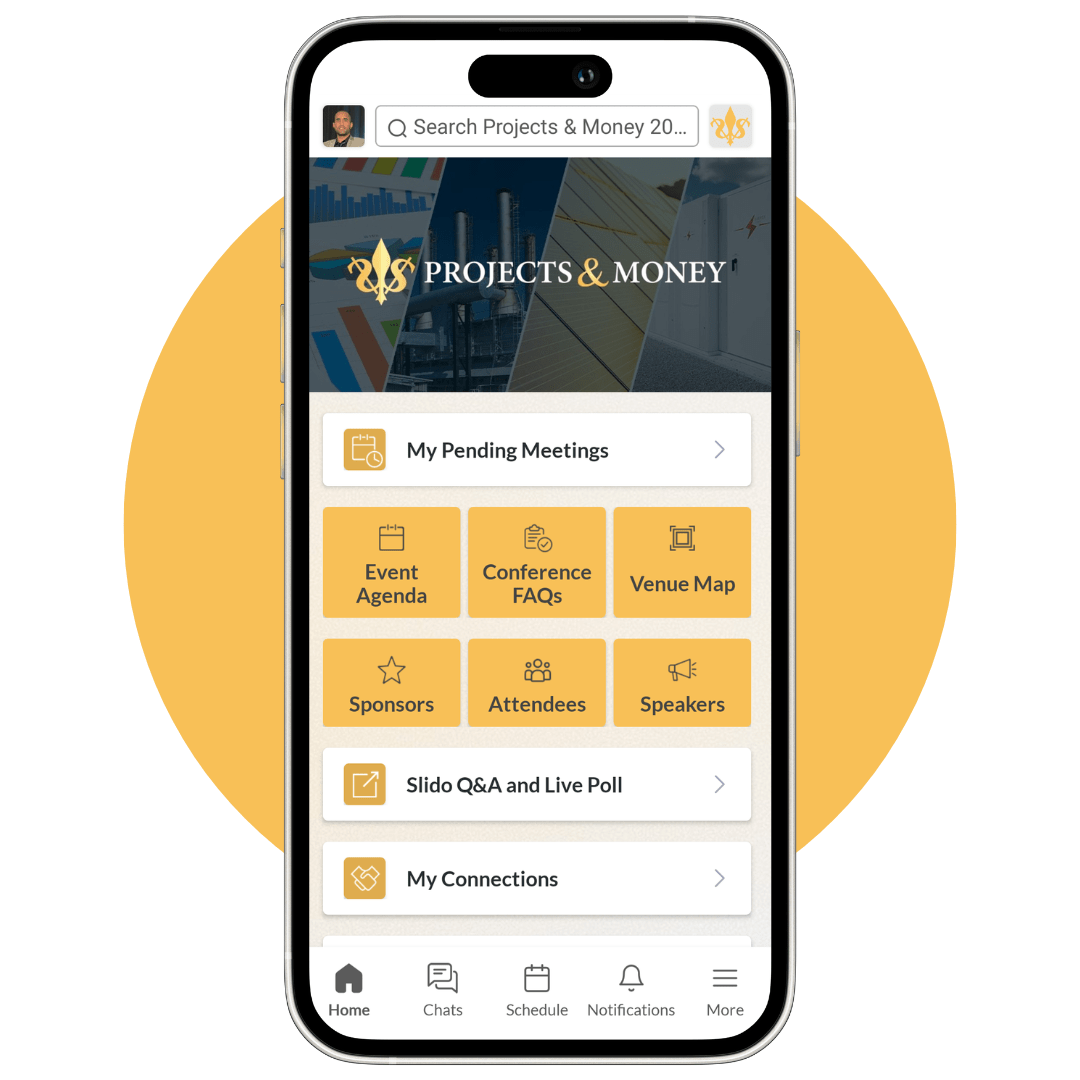
Via the official mobile app for on-the-go networking. The most convenient form to engage with others and stay up-to-date while at the event.
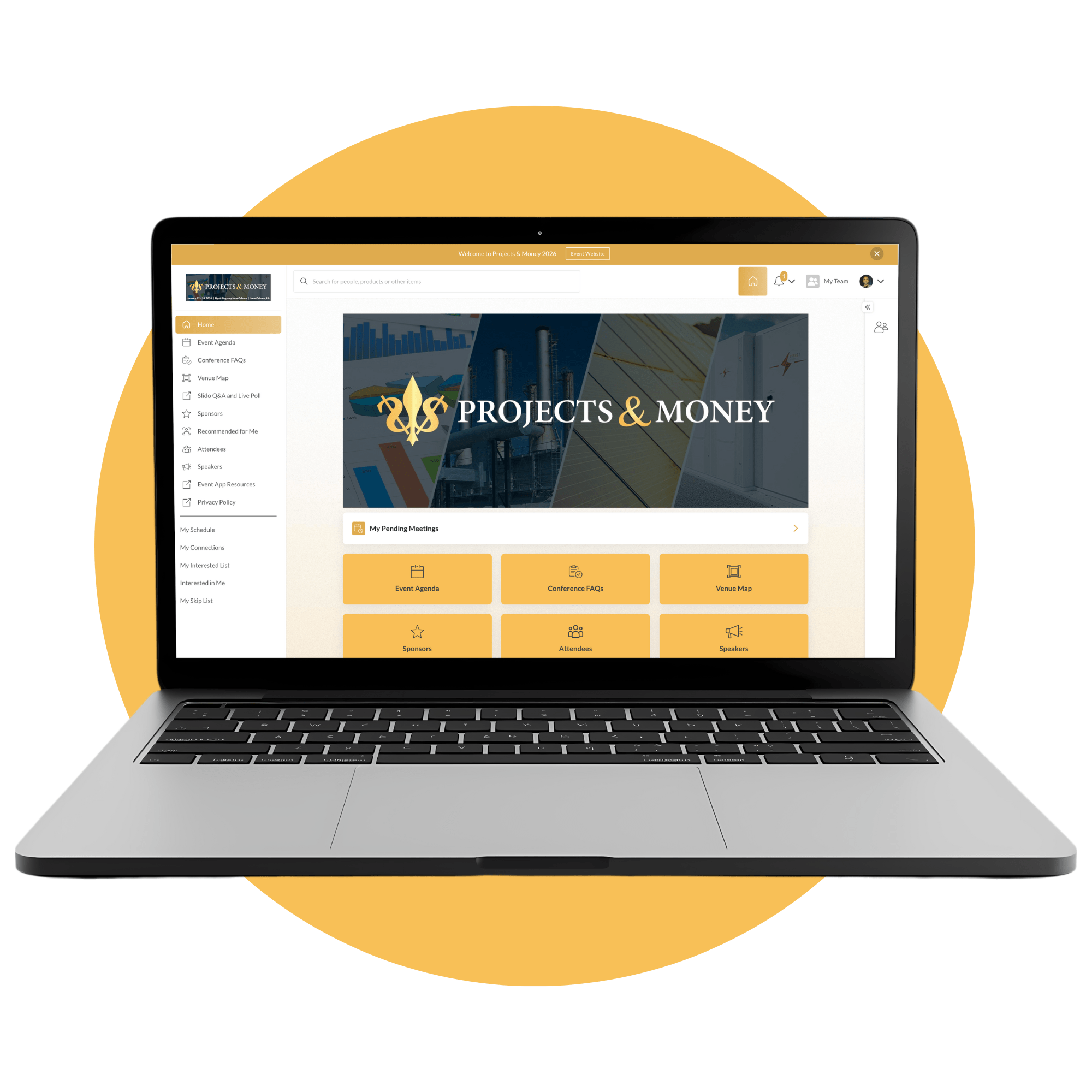
Or directly on your desktop/browser with no download required. Perfect for use while still at the office the days/weeks ahead of the event.
Download the official mobile app for on-the-go networking. The most convenient form to engage with others and stay up-to-date while at the event.
Yes, you can use the “Calendar Sync” feature through the mobile app. Make sure you to check your calendar's 'out-of-office' and/or 'auto-response' settings to prevent meetings from being declined automatically.
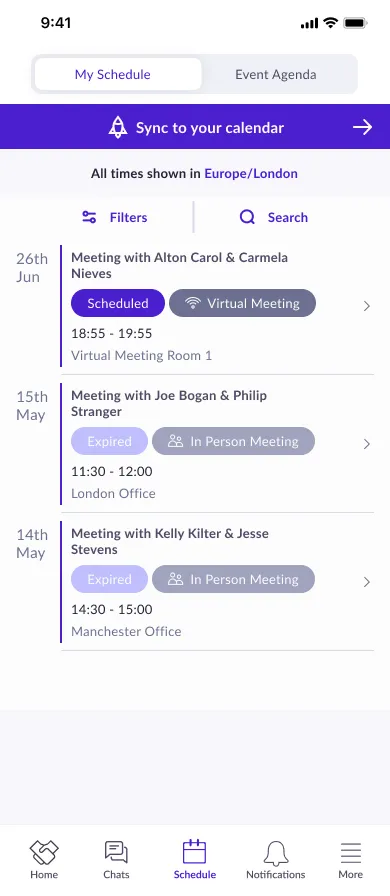
iOS: With the mobile app open, hit the "Schedule" icon on the bottom pane. You’ll see a new banner on top that says “Sync to your calendar”. Tapping on that button will open a new popup that will allow you to sync your calendar. As soon as you press the “Synchronise” button the link will open and your calendar app will open with the option to subscribe and name your calendar.
Android: With the mobile app open, hit the "Schedule" icon on the bottom pane. Tap the "Sync to your Calendar" banner. Tapping on that button will open your default system calendar app (Samsung Calendar on Samsung phones, Google Calendar on Google phones) and show you the list of events that will be imported, once you tap on "Save" the calendar events will be imported in your calendar app.
Note: If you skip or you’re simply not interested in syncing your calendar at the moment, you can always go back and do it from your “More” screen inside the app. Scroll down to the General section and hit "My Calendar Sync".
Only Sponsors can create a “Team” in the platform. You can add anyone attending the event to your team (for example: in case one of your team members is registered as a speaker instead of a sponsor), however anyone added to your team will be able to download your team connections.
My Team is accessible exclusively via web browser.
View page 3 of the Exhibitor Resource Guide.
Team members can edit your company profile, access inbound leads, export Connections (contacts), and schedule meetings on behalf of other team members. Admins can do everything a team member can do but they can also edit their team members profiles and manage their availability and invite additional team members.
My Team is accessible exclusively via web browser.
View page 3 of the Exhibitor Resource Guide.
Sponsors can add Lead Qualification Questions for their Team through the “Teams” Dashboard. Set this up by going to “Teams”, then “Settings” and adding your questions. These notes will be included in you Connections Export and can be customized for your company.
These questions will appear on once you've connected with someone to add information to follow-up post-event. Answers will not be shared with the profile; however, they will be shared across your team in the "Export".
My Team is accessible exclusively via web browser.
View page 4 of the Exhibitor Resource Guide.